How to Permanently Delete Your Instagram Account In Minutes
Instagram has become one of the go-to spots for many adults. Especially those between 18 and 50, with around half of U.S adults now using the platform. It ranks right behind Youtube and Facebook as a top social media choice for many.
That endless feed of photos, reels and stories can feel entertaining first, until the constant comparison, notifications, and doom-scrolling start wearing you down. Besides the mental toll, there’s the privacy side, every like, comments and post feeds into Meta’s massive data machine, powering a multi-billion-dollar business that knows more about your habits than you might realize.
If you are ready to step away, reclaim some headspace and take control of your personal information, you are not alone. Whether it’s a full deletion or just a much-needed break, this step-by-step guide walks you through exactly how to delete your instagram account safely and permanently.
How to Delete Your Instagram Account- Step-By-Step Process
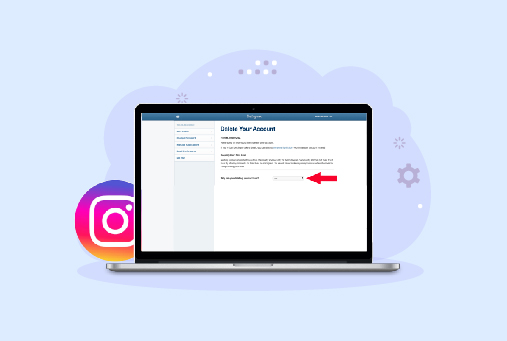
If you have made up your mind to delete your Instagram account for good, the process is straightforward. But, it can only be done through a web browser (on your phone or computer). You cannot permanently delete it directly from the Instagram mobile app. Here’s what you exactly need to do:
- Open Instagram.com or the mobile version in your phone’s browser. Sign in the account you want to delete.
- Once logged in, click on your profile picture in the top right ( on desktop) or tap the menu (three lines) in the bottom right or top right on mobile. Then select Settings and privacy (or simply Settings depending on the view).
- Near the top of the settings menu, click Accounts Center. This is Meta’s central hub that manages your connected Instagram, Facebook, and Threads account.
- Inside the Accounts Center, tap or click Personal details, then select Account ownership and control. Right from there, select Deactivation or deletion.
- If you have multiple accounts, select the specific instagram account you want to delete.
- Next, select Delete account, then click Continue. Instagram will ask you to select a reason for leaving and to re-enter your password for security reasons. Once you confirm everything, your account will be ready for permanent deletion.
Note: After finishing the above steps, Instagram usually keeps a short period (about 30 days) before completely erasing your data. During this time, you can cancel the deletion by logging back into your account. After that window closes, the account and all its content are gone for good.
Point to Remember: Just in case, if you want to keep anything, consider downloading a copy of your data ( your photos, videos, messages, etc) from the Accounts Center first.
Deactivating vs. Deleting Your Instagram Account- What’s the Difference?
Before you decide to delete your Instagram account, it is paramount to understand the difference between deletion and deactivation. Many people think it’s the same, but they are not the same thing. Deletion is permanent, while deactivation is temporary.
When you deactivate your account, the platform hides your profile from everyone, but nothing is deleted. You can restore access to your account anytime by simply logging in. However, once you delete your account, the platform permanently removes your data within 30 days. You can still restore access by logging into your account before 30 days.
Keep in mind that, after that time passes, your account, photos, videos, comments, and profile are gone forever and cannot be recovered.
What Happens When You Delete Your Instagram Account?
Deleting your Instagram account doesn’t happen instantly. After you confirm the deletion, Instagram gives you a 30-day grace period. During these 30 days, your profile and all your content become hidden, even from you. You can still log back in and cancel the deletion if you change your mind.
Once the 30 days are up, your account is permanently deleted and cannot be recovered. However, it can take Instagram up to 90 days to fully remove your data from their servers.
Because of this, it’s smart to download your photos, videos, and other data before you start the deletion process. Once it’s gone, it’s gone for good.
Will Your Data Be Gone Forever After Deleting Instagram?
No. When you permanently delete your account on Instagram, the platform will take up to 30 days to completely erase your data. In addition, the app might take up to 90 days to fully clear your data from the rest of their servers and backups.
Can I Temporarily Disable My Instagram Account?
Yes, it is possible to disable your Instagram account temporarily. You don’t always have to delete it permanently. If you are a student, or simply want to take a break from your social media like, deactivating is the best option to opt for.
When you deactivate your account, your profile becomes hidden to everyone. And, whenever you want to get back the access, simply login to your account and there you go.
Why Am I Unable to Delete My Instagram Account?
If you’re having trouble deleting your Instagram account, you’re not alone. Here are the most common reasons why it might not be working:
- You’re trying to delete it directly from the Instagram mobile app. Instagram only allows permanent deletion through a web browser (on your phone or computer). You cannot delete it from the app itself.
- You’re not logged into the correct account. Make sure you’re signed in with the exact username and password of the account you want to delete.
- You recently changed your password or email and need to wait a short time before deletion is allowed.
- Your account is linked to Facebook or other Meta accounts, and you need to go through the Accounts Center to complete the process.
- Instagram sometimes has temporary glitches or server issues that prevent deletion. In that case, try again after a few hours or from a different browser.
Quick tip: Always use a web browser (Chrome, Safari, etc.) and go to instagram.com to start the deletion process. If you’re still stuck, try clearing your browser cache or using incognito mode.
Ensuring Your Privacy with iProVPN
When you are deleting your Instagram account, there are certain things you should bear in mind to do to protect your privacy. It is obvious that in this process, your security can be boosted by using a VPN like iProVPN. Here’s how iProVPN can help:
- Secure Your Connection: iProVPN helps keep your internet connection secure to prevent data loss to unscrupulous individuals.
- Maintain Privacy: When using iProVPN, you are safe from being tracked and your online activities, including the tracking done by Instagram, are safely concealed.
- Access from Anywhere: In case you are on a trip or restricted, iProVPN provides you with a window through which you make changes to your Instagram profile.
Deleting your Instagram account is a straightforward process, but it requires careful consideration. Whether you choose to temporarily deactivate or permanently delete your account, the steps are clear. If you’re concerned about privacy, using a VPN like iProVPN can provide an added layer of security, ensuring that your personal information remains protected throughout the deletion process.
FAQs
- How to delete an Instagram account?
To delete your Instagram account, you must use a web browser. Log in to Instagram, go to the “Delete Your Account” page, select a reason for deletion from the dropdown menu, re-enter your password, and confirm.
- How do you delete an Instagram account?
The process to delete your Instagram account involves logging in through a web browser, navigating to the “Delete Your Account” page, choosing a reason, re-entering your password, and finalizing the deletion.
- How to delete your Instagram account permanently?
To permanently delete your Instagram account, log in via a web browser, navigate to the “Delete Your Account” page, select a reason for deletion, enter your password, and confirm. This action is irreversible.
- How to delete an Instagram account on phone?
You cannot delete your Instagram account directly through the mobile app. Use a mobile web browser to go to the Instagram website, log in, navigate to the “Delete Your Account” page, select a reason, enter your password, and confirm.
- How to delete Instagram account permanently on Android?
On Android, use a mobile web browser to visit the Instagram website. Log in, go to the “Delete Your Account” page, choose a reason, re-enter your password, and confirm the deletion.
- How to delete Instagram account permanently on iOS?
For iOS, open a mobile web browser, go to the Instagram website, log in, navigate to the “Delete Your Account” page, select a reason, enter your password, and confirm. The process cannot be completed through the app itself.
- How to delete Insta account if you forgot your password?
If you forgot your password, first reset it via Instagram’s “Forgot password?” option. After resetting, log in through a web browser, go to the “Delete Your Account” page, and follow the steps to delete your account.
- How to close Instagram account temporarily?
To temporarily disable your Instagram account, log in via a web browser, go to your profile, click on “Edit Profile,” scroll down to “Temporarily disable my account,” select a reason, and enter your password.
- How to download Instagram data before deleting account?
To download your Instagram data, open the mobile app, go to “Your Activity,” select “Download Your Information,” enter your email, request the download, and follow the instructions sent to your email.
- How to ensure privacy when deleting an Instagram account?
Using a VPN like iProVPN can enhance your privacy during the deletion process by encrypting your connection, protecting your data from tracking, and providing secure access to Instagram’s website.