10 VPN Mistakes Leaking Your IP (Settings Most Get Wrong)
You’ve installed a VPN. You hit connect. The app shows green, the lock icon appears, and your IP address changes. Everything looks fine, but there’s something that most people don’t realize, which are the VPN mistakes leaking your IP.
Have you ever noticed a VPN that says it’s connected isn’t always a VPN that’s protecting you? Misconfigurations happen more often than anyone wants to admit, and when they do, your real IP address leaks without you even knowing.
With that said, this guide discusses the ten most common VPN mistakes that expose your physical IP, and how to fix them.
VPN Misconfigurations Are Common – Most Aren’t Aware
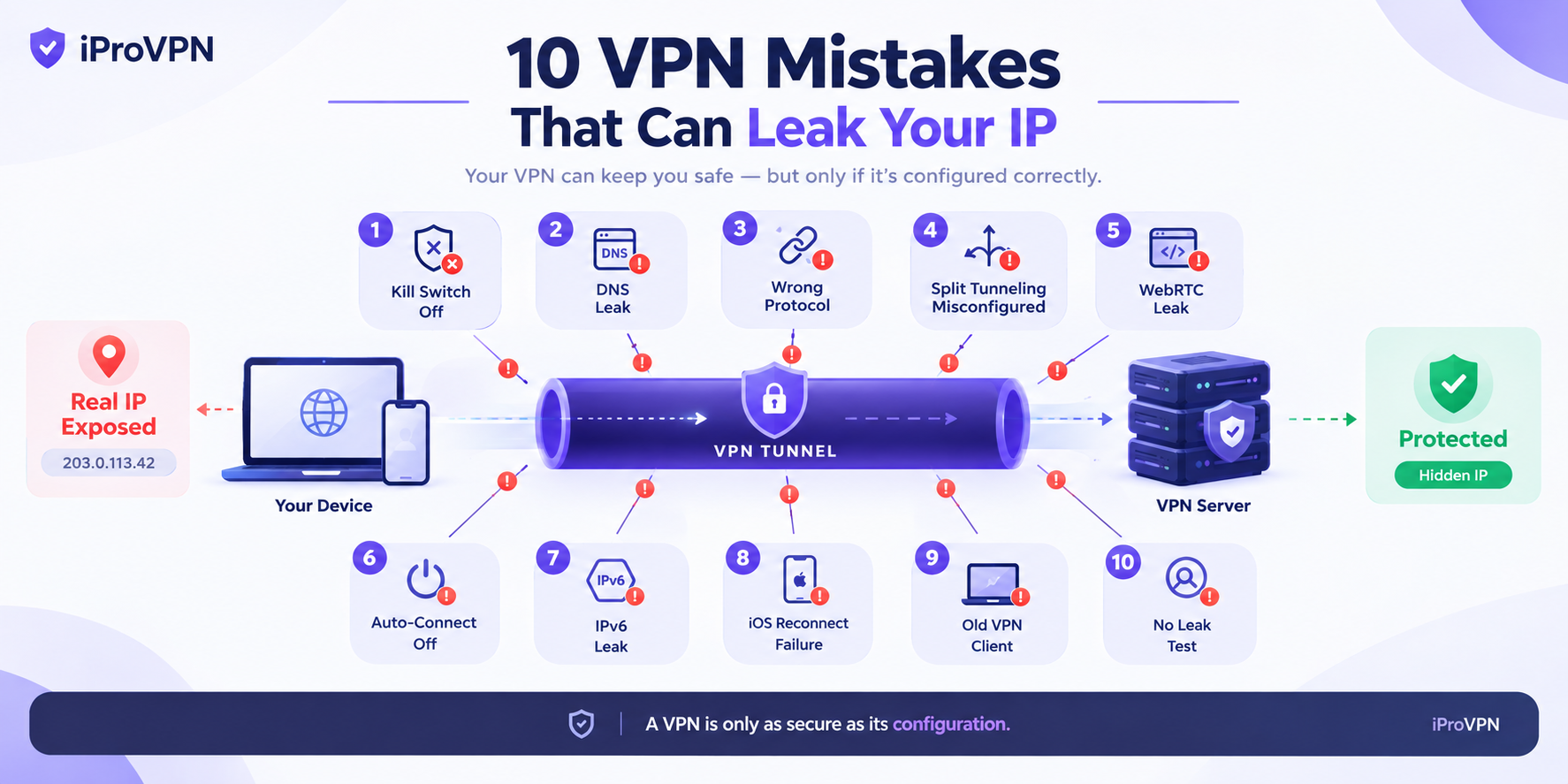
A VPN’s main purpose is to route your internet traffic through an encrypted tunnel so your real IP address is anonymous.
But that tunnel has multiple points where things can go wrong:
- DNS requests can escape.
- WebRTC can bypass the tunnel.
- IPv6 traffic can leak.
- Kill switches can fail.
Each is a separate mechanism, so no single fix solves everything. You will have to check each one individually.
But why does it matter?
It should matter for anyone who relies on a VPN for privacy. This is especially needed for remote workers. It’s also required for streamers accessing region-locked content, gamers connecting to international servers, and anyone who simply doesn’t want their browsing trail tied to their real identity.
10 VPN Mistakes Leaking Your IP
Now that you know that VPN misconfigurations are more common than you think, here are the mistakes that leak your real IP and that most ignore:
1. Kill Switch Not Enabled
This is one of the biggest reasons your IP gets exposed. If your VPN connection drops midway, whether because of a network issue, a server problem, or a device restart, your internet traffic reverts to your normal connection. So, without a kill switch, your real IP becomes visible instantly.
Here’s how to fix it:
- Enable the kill switch in your VPN app settings.
- On Windows, check the “Connection or Network” section. And similarly, on macOS, look in “Preferences.”
Make sure it’s active on every device you use. To check if your IP has changed and your physical IP isn’t exposed, it’s best to run an IP leak test. For this, you can use a free IP checker tool.
2. DNS Leak Protection Turned Off
DNS requests translate website names into IP addresses. So, if those requests aren’t routed through the VPN tunnel, your internet provider can see every site you visit. This can also happen while the VPN appears to be working.
Here’s how to fix it:
Turn on DNS leak protection, which you can find in the VPN settings section. After connecting, run a DNS leak test to confirm your requests are routing correctly.
3. You Select the Wrong Protocol
Many assume that all VPN protocols work the same. No, they don’t. Some protocols are more secure than others. If your app defaults to an older or weaker protocol, your connection may be vulnerable to leaks or interference.
Here’s how to fix it:
We recommend switching to OpenVPN and WireGuard protocols, as they are the most reliable choices. If your VPN uses an auto-select mode, switch to manual selection and choose one of these protocols.
4. Split Tunneling Misconfigured
This is another one of the VPN mistakes leaking your IP. The Split Tunneling feature lets you choose which apps use the VPN and which don’t. It’s a useful feature, but if you exclude the wrong apps, sensitive traffic can bypass the tunnel entirely.
Here’s how to fix it:
First, review your split tunneling rules carefully. Only exclude apps that genuinely don’t need VPN protection. The best solution when you’re in doubt is to route everything through the VPN.
5. WebRTC Not Blocked in Your Browser
Next on VPN mistakes leaking your IP is WebRTC not being blocked in your browser. WebRTC is a browser feature that enables real-time communication. However, it can also reveal your real IP address, even when your VPN is active.
Here’s how to fix it:
Start by disabling WebRTC in your browser settings, or use a browser extension that blocks it. Chrome and Firefox both allow you to turn this off.
6. Auto-Connect on Startup Disabled
If your VPN doesn’t start automatically when your device boots, there’s a window where your traffic flows unprotected. Even a few seconds is a lot to expose your IP.
Here’s how to fix it:
You have to enable auto-connect in your VPN app preferences. This ensures the VPN app starts before any other traffic leaves your device.
7. IPv6 Leaks
Many VPNs handle IPv4 traffic well but don’t block IPv6. If your device uses IPv6 and the VPN doesn’t route it, your IPv6 address can leak.
Here’s how to fix it:
Disable IPv6 at the operating system level, or confirm that your VPN blocks it natively. This is especially common on Windows.
8. Auto-Reconnect Failure on iOS
iOS devices handle VPN connections differently than other platforms. Certain system-level processes can bypass the VPN tunnel, even when a kill switch is active.
Here’s how to fix it:
After every iOS update, start by manually checking your VPN configuration profile. Don’t assume your settings carried over.
9. An Old VPN Client Version
This is one of the biggest VPN mistakes leaking your IP and the silliest one. Older versions of VPN apps and even devices, for that matter, have known vulnerabilities. They miss out on newer encryption standards or fail to apply bug fixes.
Here’s how to fix it:
Always keep your VPN app updated on all devices. On Android, background updates aren’t always installed automatically. This is where you need to manually check.
10. You Never Test After Configuration
This is the most overlooked mistake that exposes your IP address. People set up their VPN and assume it’s working automatically. You need to take time to verify it.
Here’s how to fix it:
After changing any setting, run an IP lookup test to confirm your real IP isn’t exposed. It takes seconds and gives you certainty.
How to Test if Your VPN Is Leaking
Now that you know the common mistakes and their fixes, you need to test if your VPN is leaking your physical IP address. Here’s how:
- Go to a free IP leak tool and check your IP without a VPN.
- Now, connect to the iProVPN app. Connect to any server location.
- Visit https://ipleak.net/ again and see the IP address shown. It should be different from your real IP.
- Next, run a DNS leak test to confirm that your DNS requests are routing through the VPN.
- Now, check for any WebRTC leaks. You can use a free browser-based testing tool to see if your real IP is visible.
- Lastly, repeat on every device that you’re using the VPN on. A VPN that works on your laptop might leak on your phone. This is why it’s better to check all connected devices.
If any test shows your real IP or your ISP’s DNS servers, you have a leak to fix.
Platform-Specific Settings to Review
Each operating system handles VPN connections differently. Here’s what to check on each platform:
| Platform | What to check |
| Windows | Disable IPv6 system-wide. Confirm Kill Switch is active at the adapter level. |
| Android | Enable “always-on VPN” and activate “Block connections without VPN.” |
| iOS | Manually inspect the VPN configuration profile after each major OS update. |
| macOS | Set the VPN profile to connect on demand. Lock DNS settings to the VPN’s servers. |
To Conclude
Always keep in mind, there are many VPN mistakes leaking your IP, and you need to check each of them. It wouldn’t even take that much time and might be a little fun.
A VPN is only as good as its configuration, so a properly set up VPN hides your IP and encrypts your traffic.
A misconfigured one gives you a false sense of security, which can be worse than not using a VPN at all.
iProVPN encrypts your data for protection against hackers and surveillance. Unblock your favorite streaming platforms instantly with the best VPN for streaming.
Start Browsing Privately!